Rule Applied Columns
Let’s circle back to the point when we were Creating a Business Rule. If you recall, in that flow we were able to review the existing Data Columns mapped to the primary Concept of that rule. We could also add and remove mappings so as to re-adjust the Concept’s model before running or scheduling a Data Quality rule. This ability is provided as a flexible add-on feature for users.
Once the rule is created, we’re still able to manage these columns through the ‘Applied Columns’ Tab. To View and Edit the ‘Applied Columns’ of that rule:
Step 1. Open the Business Rule from the Main Grid
Step 2. Open the ‘Applied Column’ Tab
Step 3. Upvote or Downvote any Mappings
Step 4. Run model to Re-run the Tenant-wide Classification Model
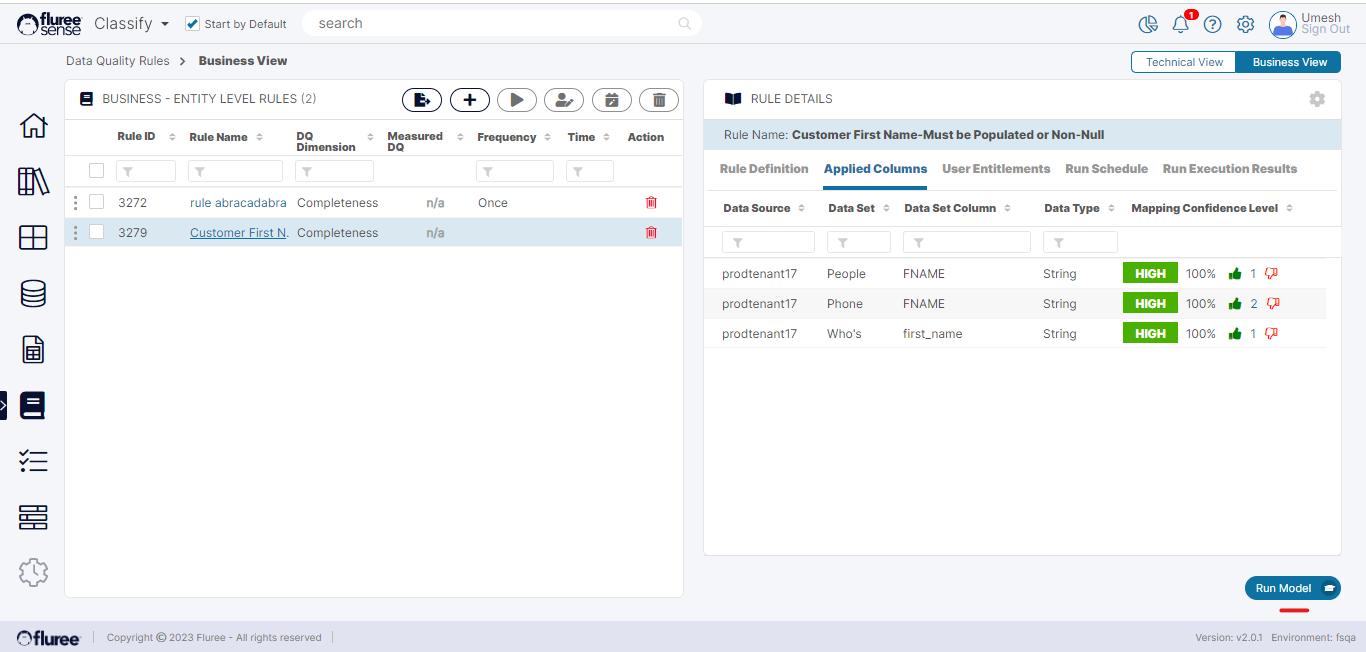
The Run model button will activate if you’ve made any changes to the mappings and can be clicked to trigger the Classification model and incorporate the impact of these changes in the model.
You may be wondering, what is the need to provide for Tenant Classification here?
Data Quality and Classification are closely linked as Data Quality score at Catalog / Semantic Object and Concept level represents the Quality score for business objects which can only be accurate if the mappings to business objects are regularly kept updated.